
♣ ♥ ♠ ♦
What is ShowCard?
ShowCard is a mobile web app designed for card performers. It lets you silently encode a playing card into your phone using natural-looking gestures, then reveal it dramatically at the right moment.
The encoding happens in two steps as you handle the phone. First, the suit is registered by where your thumb lands as you pick up the phone. Then a second touch encodes the value. Neither touch looks deliberate to an observer — they’re the natural contacts of someone checking their phone.
When you’re ready for the reveal, either lift the phone or give it a subtle motion and the card fades into view. The whole sequence, from encoding to reveal, can be made to look completely incidental.
Installing ShowCard
ShowCard is a Progressive Web App (PWA). There is nothing to download from an app store — you install it directly from the browser. Once installed it works completely offline, launches full-screen from your home screen, and behaves like a native app.
Important: You must use the correct browser for installation. Firefox does not support PWA installation. Use Safari on iPhone y Chrome on Android.
iPhone — Safari
- Open Safari and go to
robertjwallace.com/showcard - Tap the Compartir button (box with arrow pointing up)
- Scroll down and tap Add to Home Screen
- Tap Add in the top right
Android — Chrome
- Open Chrome and go to
robertjwallace.com/showcard - Tap the three-dot menu in the top right
- Tap Add to Home Screen
- Tap Add to confirm
After installation, tap the ShowCard icon on your home screen. It will open full-screen with no browser chrome. The app caches all card images on the first load, so it will work with no internet connection from that point on.
iPhone note: The first time you launch, iOS will ask for permission to access motion and orientation sensors. Allow this — it is required for the pickup trigger to work.
How to Use ShowCard
When the app opens it shows a blank screen:
The Encoding Grid
The phone screen is invisibly divided into zones. You never need to look at them — after a little practice the positions become muscle memory.
Suit — 4 horizontal rows, top to bottom:
| Zone | Suit |
|---|---|
| Top quarter | ♣ Clubs |
| Upper middle | ♥ Hearts |
| Lower middle | ♠ Spades |
| Bottom quarter | ♦ Diamonds |
Value — 3×4 grid, reading left to right, top to bottom:
| Left | Centre | Right | |
|---|---|---|---|
| Top row | A | 2 | 3 |
| Second row | 4 | 5 | 6 |
| Third row | 7 | 8 | 9 |
| Bottom row | 10 | J | Q |
The King is a special case — see below.
The Sequence
1. Phone face down on the table.
The app is waiting. Nothing is visible.
2. Pick up the phone.
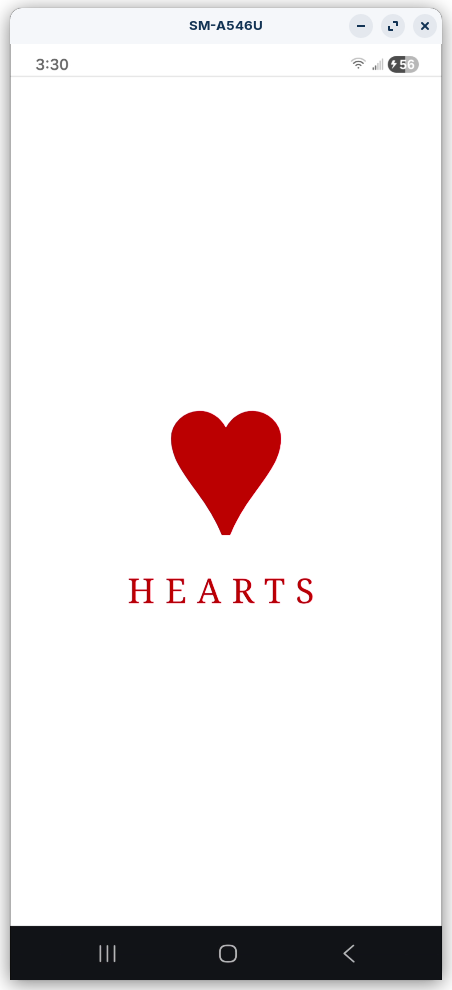
As it turns face up, your thumb naturally contacts the screen. The vertical position of that first touch encodes the suit. If the suit display is enabled, the suit symbol appears large on screen.
3. Touch the screen a second time.
The position within the 3×4 grid encodes the card value. The image is silently pre-loaded.
4. Trigger the reveal.
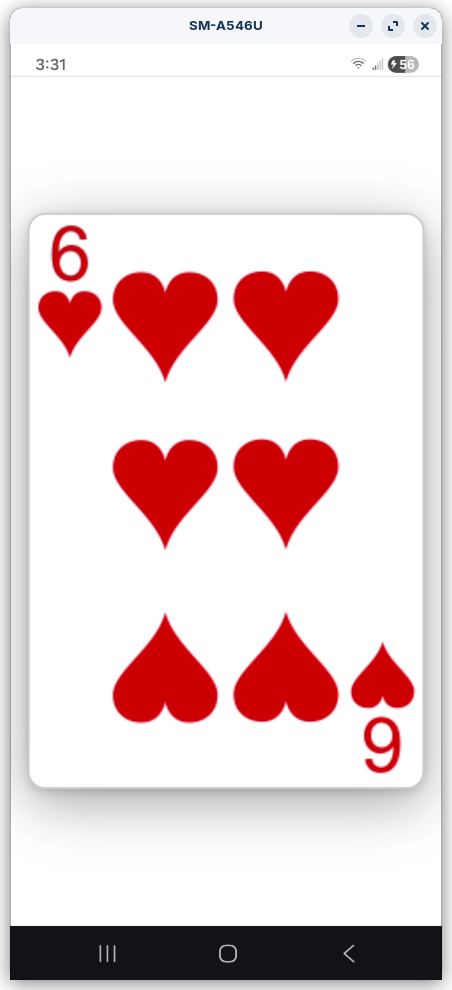
Either lift or move the phone (motion trigger) or tap the screen a third time (tap trigger — see Settings). After the reveal delay, the card fades dramatically into view.
5. Reset.
Tap the screen to return to idle (if tap-to-reset is enabled), or open and close Settings.
The King
Because the 3×4 grid only has 12 cells (Ace through Queen), the King is encoded differently. With the suit locked and before touching for a value, give the phone a quick shake — three sharp jolts. The King is loaded silently and the next trigger will reveal it.
The King can be disabled entirely in Settings if you don’t need it.
Settings
Open Settings by tapping the invisible target in the top-right corner of the screen. On Android you can also use the volume up button if using the native app.
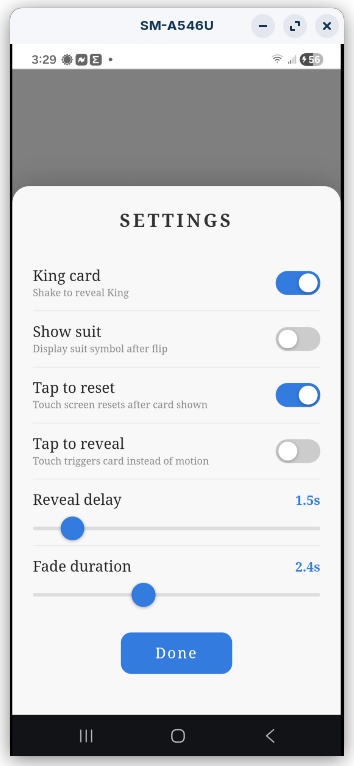
| Setting | What it does |
|---|---|
| King card | Enables or disables King encoding via shake. Turn off if your routine only uses Ace through Queen. |
| Show suit | When on, the suit symbol is displayed after the first touch. When off, the suit is encoded silently with nothing shown on screen. |
| Tap to reset | When on, touching the screen after the card is shown resets the app. When off, nothing happens on touch — open and close Settings to reset. Useful when you want the card to stay on screen without accidental resets. |
| Tap to reveal | When off (default), picking up or moving the phone reveals the card. When on, a third touch triggers the reveal. Recommended for iPhone, or any situation where motion triggering is unreliable. |
| Reveal delay | How long after the trigger before the card starts to appear. Range: 0.5 to 10 seconds. |
| Fade duration | How long the fade-in animation takes. Range: 1 to 5 seconds. |
All settings are saved automatically and persist across sessions.
Tips
- Practice the grid blind. Spend a few minutes touching each zone without looking until the positions feel natural. The grid is generous — you don’t need to be precise.
- Use a long reveal delay. A 3–4 second delay between triggering and the card appearing gives you time to set the phone down, redirect attention, or build anticipation before anyone glances at the screen.
- Turn off suit display. Once you’re comfortable with the suit rows, disabling the suit display removes any visual feedback that could tip off an observer that anything was just encoded.
- Tap to reveal on iPhone. The motion sensor on iOS can be less consistent than Android. The tap trigger is more reliable for performances where you need certainty.
- Tap to reset off. If your performance ends with the card on screen and people are looking at it, disabling tap to reset prevents an accidental touch from clearing it at the wrong moment.
Additional thoughts
Using a blank card that is added to the deck. Have a card selected and either glimpse it, or use a stacked deck, so you know what card they selected. Let them shuffle the deck and while that is being done, secretly code the card to the phone. Now take the deck from them and tell them that you have one special card in the deck. Spread through the deck to locate both the blank card and the selection. Cut the blank card to the top. Continue spreading and find the selected card and tell them that that is the special card. Place it on top of the deck without showing it. Then do a double lift to show the blank card. Explain that it is like a wild card and can become any card in the deck.
Flip the double face down and take the top card (the selection) and drop it face down centered on the phone screen. After a second or two (depending on your settings), you can see a card appear under the face down card. Take the card (supposedly blank) away to show the spectators selection shown on the screen, the turn the “blank” card over to show it matches the screen.
Alternatively, you can set the card value into the phone first, and then force that card on the spectator.