Metallic Red Roadster

The Road, Undiluted.
This isn’t merely a color; it’s a declaration. The metallic red coat hints at the
— AI-generated using gemini-2.5-flash via Gemini

Old magician who likes old cars, and old whisky
A bit more than a year ago I tried using AI to write some apps that I could use on my Amazfit watches. At that time I had one watch, the TREX-2
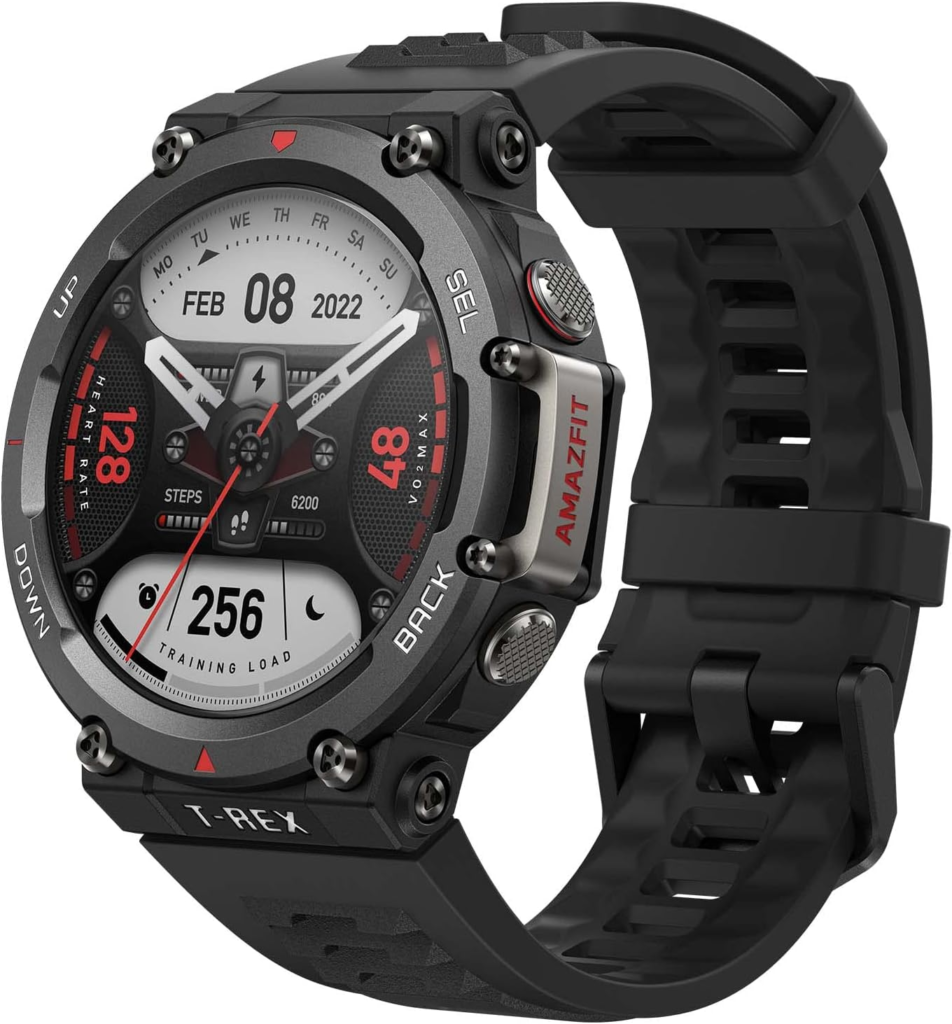
I later added the Balance 2, which is a bit more dressy
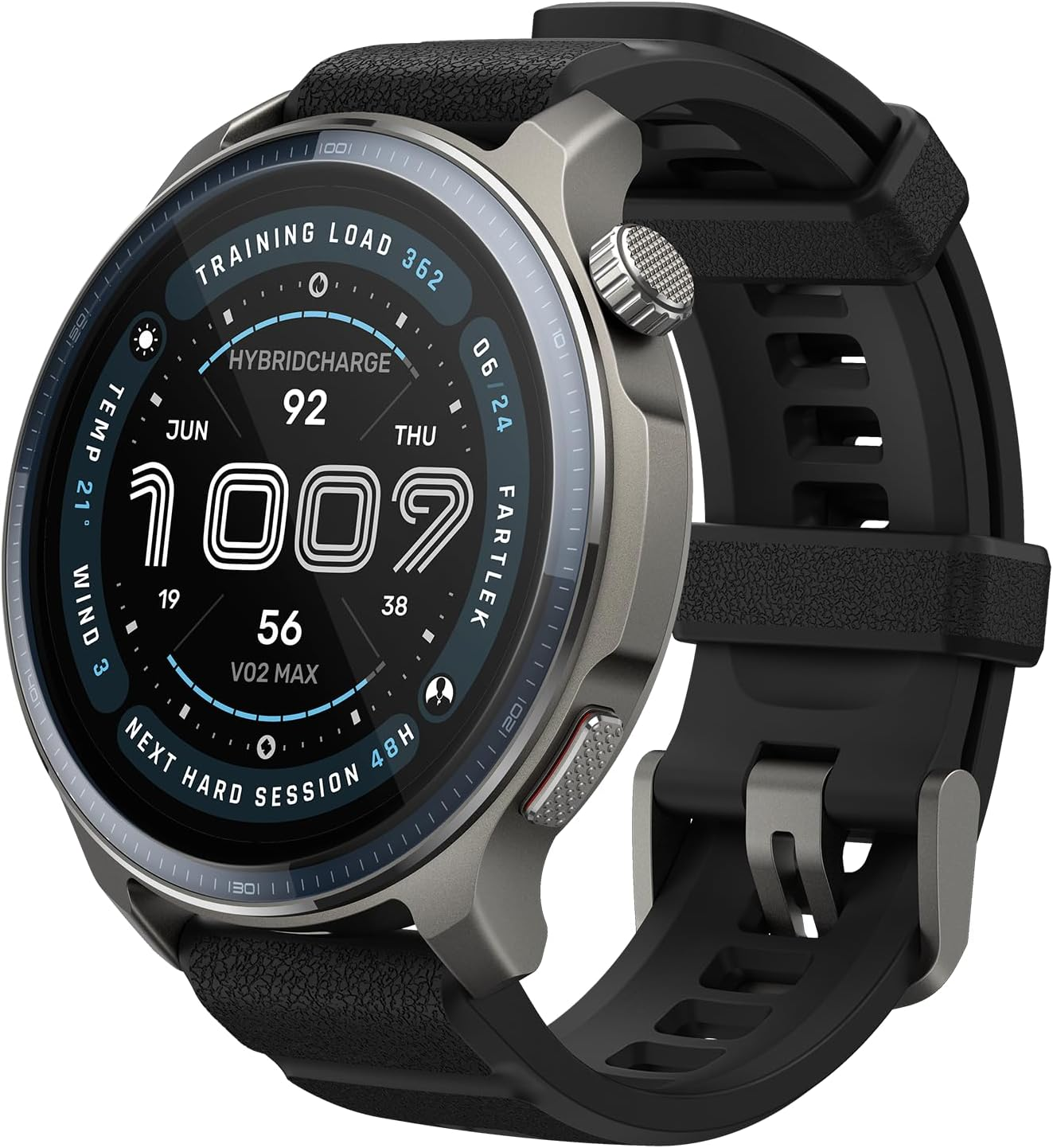
Compared to Apple, Google, or Samsung watches, I think these are a much better value. Anyway, back to writing an app for them. When I first tried, each AI I tried could not accomplish what I wanted. It came down to two issues, one was that they couldn’t find the Zepp OS documentation, and second they were terrible at writing the necessary code.
Well today I tried again and in no time I was able to create two apps.
The first was an interface to my Home Assistant system, which lets me control my lights via my watch. The second was an app that shows the bar codes for my various memberships. Now both of these uses had apps that did them in the Zepp app store, but they were paid apps. And they had more bells and whistles than I wanted. Also one was only available on the Balance 2, not on the TREX 2.
So I fired up Claude Code and told it what I wanted. It confirmed I had the necessary code installed on my computer already (from my previous attempt).
| Software | Version | What it’s for |
|---|---|---|
| Node.js (installed through nvm) | v22.21.0 | Runs the Zepp OS build tools |
| npm | 10.9.4 | Installs the project’s packages and the Zeus CLI |
Zeus CLI (@zeppos/zeus-cli, installed globally with npm) | 1.9.3 | Zepp’s command-line tool: zeus build, zeus dev, zeus preview, y zeus bridge for installing the app on the watch over Developer Mode |
| Zepp OS Simulator | 2.0.2 | Lets you test the app on screen with zeus dev. It’s optional because you can install straight to the watch. |
| Git | 2.34.1 | Version control |
| A code editor (and Claude Code) | Writing and editing the app |
Claude created the folder structure, coded everything, and then gave me the instructions on how to install the app on my watches. Installation was a breeze.
and the app was on my watch.
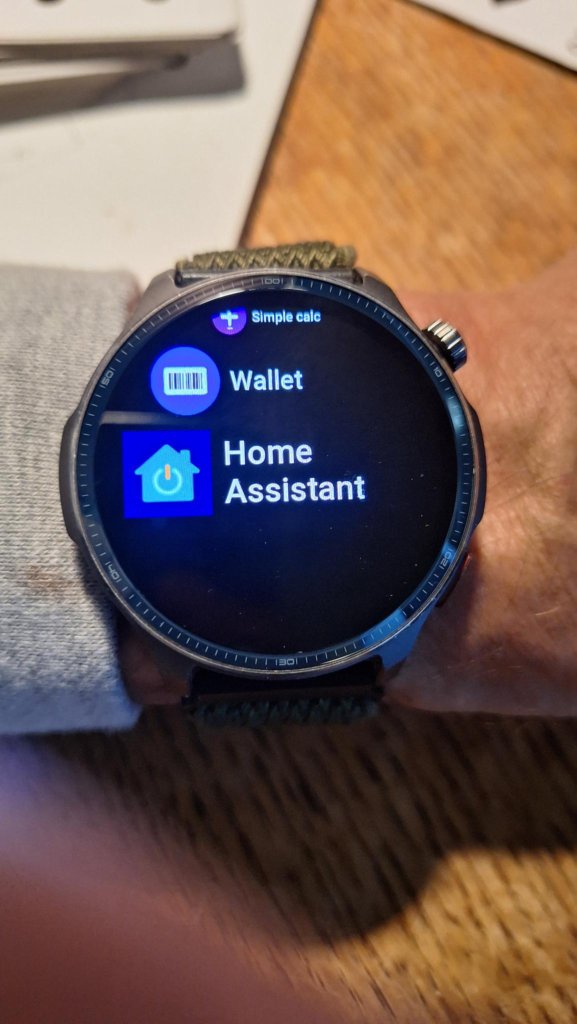
Now think about the Home Assistant App. Claude had to know two different operating systems, the watches Zepp OS, and the Home Assistant OS. It had to figure out how to connect them and get them to do what I wanted. It had to deal with the fact that the watches os were at different releases. I am impressed. It would have taken me days to find and learn the Zepp OS developer guide, and don’t get me started on Home Assistant documentation.
As AI becomes more powerful, I think that people will not bother with creating clones of Photoshop or other proprietary software. While it is an interesting exercise, it currently is in a gray area with regards to copyright and intellectual property. Also the current attempts have been good with cloning the UI, but not all of the functionality. What I think will happen is that people will begin to have AI give them the solution that exactly fits their needs. So instead of asking for a Microsoft Word clone, users will discuss what they need from a word processor, and the AI will provide it. The result will be smaller, faster, will not track the user, or send information back to the vendor to be sold.
AI capability is almost there. I have been very successful with many projects. The bottleneck right now is on the user side. Users don’t know how to ask the AI so they get what they need. Also, today, having some understanding of software and computers is a big advantage. But soon, the AI will simply give the users the same things they are use to: an executable installer.
As for the watches, why did I choose Amazfit instead of Apple, Samsung, or Google. Two reasons. The Balance is Amazfits high end watch. While it doesn’t have all the bells and whistles of the competitors, it does everything and more that I need. It also has fantastic battery life, up to seven days.
The latest rage (as of 10-19-2026) is AI driven 2d image to 3d model. Sites like Meshy, Trippo, and Trellis all let you upload a 2d image and get back a 3d model. The problem with these is the quality of the model. All it is is a collection of meshes that you can’t really edit or change in Blender. So I decided to see what the free levels of AI can do.
Continúa leyendo "Comparison of free AI’s scripting for Blender"I am working on a flight simulator game and claude code has been great. But I just exceeded my usage limits. Now I know I was not being very smart in how I use claude code. Basically it was one long conversation spanning days. So having a recursive set of mind, I asked AI what I should do.
Continúa leyendo "Using Claude Code efficiently"
If you spent any time in front of a CRT monitor in the early ’90s, the roar of a radial engine through a PC speaker is a sound you never forget. Aces of the Pacific didn’t just give us a game; it handed us the flight stick and dropped us straight into the sun-blinded skies above Wake Island and Midway.
Continúa leyendo "Aces of the Pacific"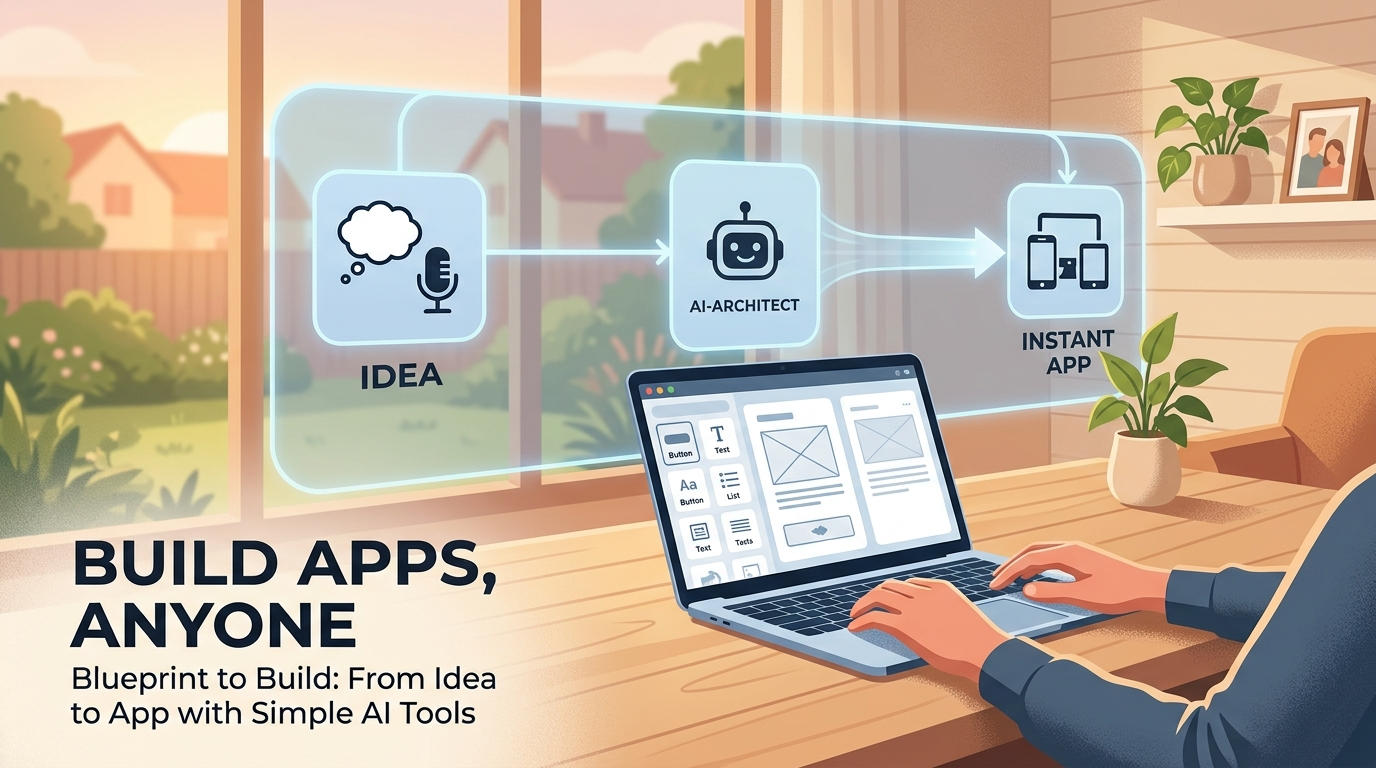
Building applications from scratch used to mean hours spent setting up boilerplate code, configuring build tools, and hunting down missing dependencies. By pairing Gemini as a project architect with Claude Code as an autonomous developer, you can take an app idea from a simple conversation to a functional codebase in under an hour.
Continúa leyendo "Building your own programs"